Learn
A little pattern. A lot of possibilities. Create a background for your next website, presentation or print project in a few simple steps.
1. Start with a preset
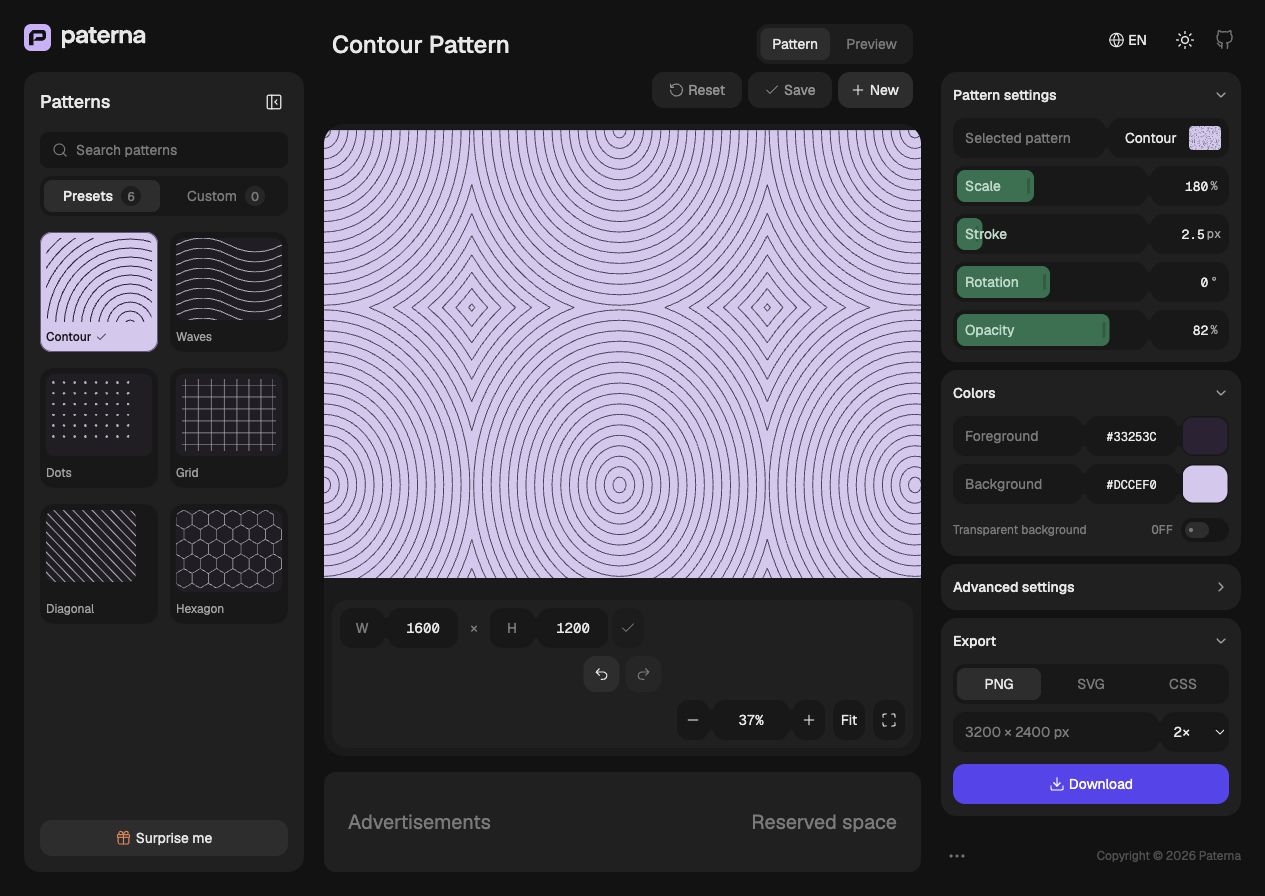
Choose Contour, Waves, Dots, Grid, Diagonal or Hexagon from the Presets tab. Each preset starts with its own colors and settings. Search by name to find a pattern quickly.
2. Make it your own
Drag a control or type a value directly. The canvas updates as you work.
- Scale: make the repeating shapes larger or smaller.
- Stroke: adjust line thickness on patterns that use lines.
- Rotation: turn the pattern without rotating the canvas.
- Opacity: change the visibility of the pattern marks.
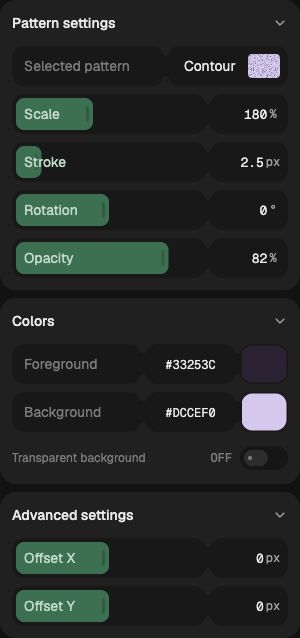
Waves also has a Wave height control; Dots has Dot size. Open Advanced settings to shift the pattern with Offset X and Offset Y.
3. Choose colors and canvas size
Set the foreground and background using a color picker or a six-digit HEX value. Turn on Transparent background when you want the pattern without a solid background.
Enter your canvas width and height in pixels, then press the checkmark to apply them. The checkmark becomes available when a valid size changes. Canvas dimensions and preview zoom are separate: zooming does not change the downloaded size.
4. Check it in context
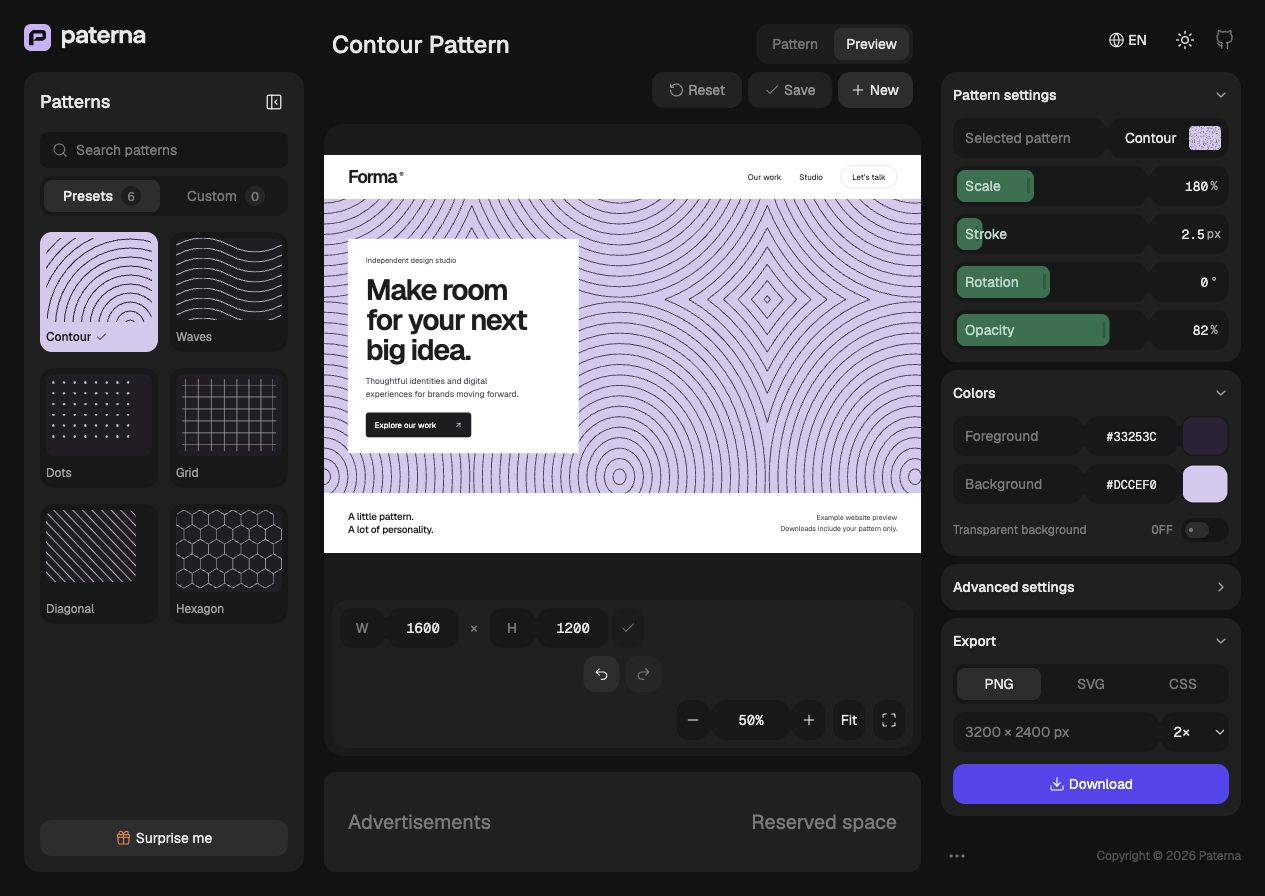
Switch from Pattern to Preview to see your design in an example website. Use Fit to show the whole canvas, or zoom in to inspect details. Fullscreen gives you more room.
5. Keep a Custom preset
Click New, give your design a recognizable name and choose Create preset. Find it later in the Custom tab.
To update a Custom preset, select it, make changes and click Save. This updates the same preset. Use New when you want a separate copy, or the pencil beside its title to rename it.
Keep a downloaded copy of important work. Custom presets and your current workspace are stored in this browser on this device. They do not sync to another device, and clearing site data can remove them.
6. Export your pattern
- PNG: a raster image for presentations, social posts and other image workflows. Choose an export scale to control the final pixel dimensions.
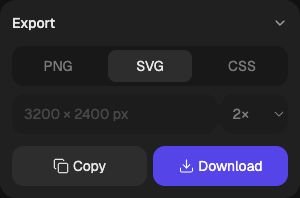
- SVG: editable vector artwork for design tools and sharp graphics at different sizes. Copy the SVG code or download the file.
- CSS: a ready-to-use background-image snippet containing the pattern as an SVG data URL. Copy the code or download it.
A few useful shortcuts
- Undo / Redo: step through edits using the canvas buttons. You can also use ⌘/Ctrl Z and ⌘/Ctrl Shift Z outside text fields.
- Reset: return to the selected preset’s starting settings.
- Surprise me: start a fresh random variation. It starts a new undo history; use New to keep a result you like.
Generated patterns are available for personal and commercial projects. Read the License for details, or learn about browser storage in our Privacy policy.